
POS system for concept stores and shop-in-shop
A shop-in-shop POS system is a till system that lets you sell products from several brands or independent entrepreneurs through one till, while turnover, stock, commission and payouts stay separate for each entrepreneur. Count-IT does that for you: create experiences, automate the rest.
In short
Count-IT is a cloud POS system for concept stores, shop-in-shop formats and shops that sell on commission or consignment. Every sale is assigned to the right entrepreneur; for each period Count-IT produces the commission overview, the commission invoices and a payout file with IBANs.
- Every brand through one till, one receipt for the customer
- Commission percentage per entrepreneur, invoices in one click
- Payout file with IBANs, split by department and VAT rate
- 5.0 on Google, read testimonials
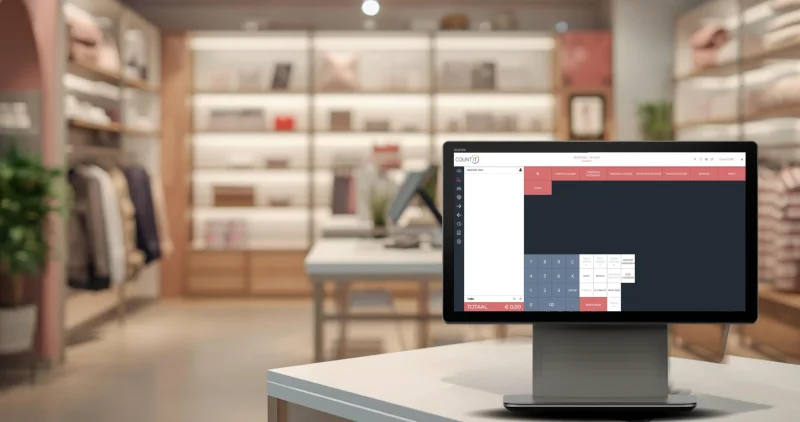
What a POS system for a concept store needs to do
A concept store is all about experience, variety and flexibility. Behind the scenes, you want calm: one till, one stock and a settlement that adds up. With Count-IT you manage every brand and entrepreneur from one central environment, each with their own range and their own arrangements, while you keep the overall picture.
Multiple brands and entrepreneurs
Link each product to the brand or entrepreneur it belongs to, and track sales, margins and stock per party.
Commission and commission invoices
Set a percentage for each entrepreneur. Count-IT calculates the commission per period and creates the invoices for you.
Own environment for each entrepreneur
Entrepreneurs log in to the supplier portal to manage their products and view their stock and sales.
One till, one receipt
Your customer pays for everything at once, whatever the brand. Count-IT assigns the receipt lines to the right entrepreneurs.
Your own look
Adapt the system theme to your house style so everything matches your brand identity.
Insight per brand or entrepreneur
Turnover per supplier, product group or department, and a commission report you can export to Excel.
Import and export
Add a new entrepreneur's range quickly via Excel or CSV, or export data for analysis.
Omnichannel
Connect your webshop and sell your entrepreneurs' ranges online too, with one shared stock.
Loyalty and gift cards
Loyalty points and gift cards that work across every brand in your shop, including partial redemption.
Made for shops with many suppliers
How you work with gift cards, labels and sales per supplier in Count-IT.
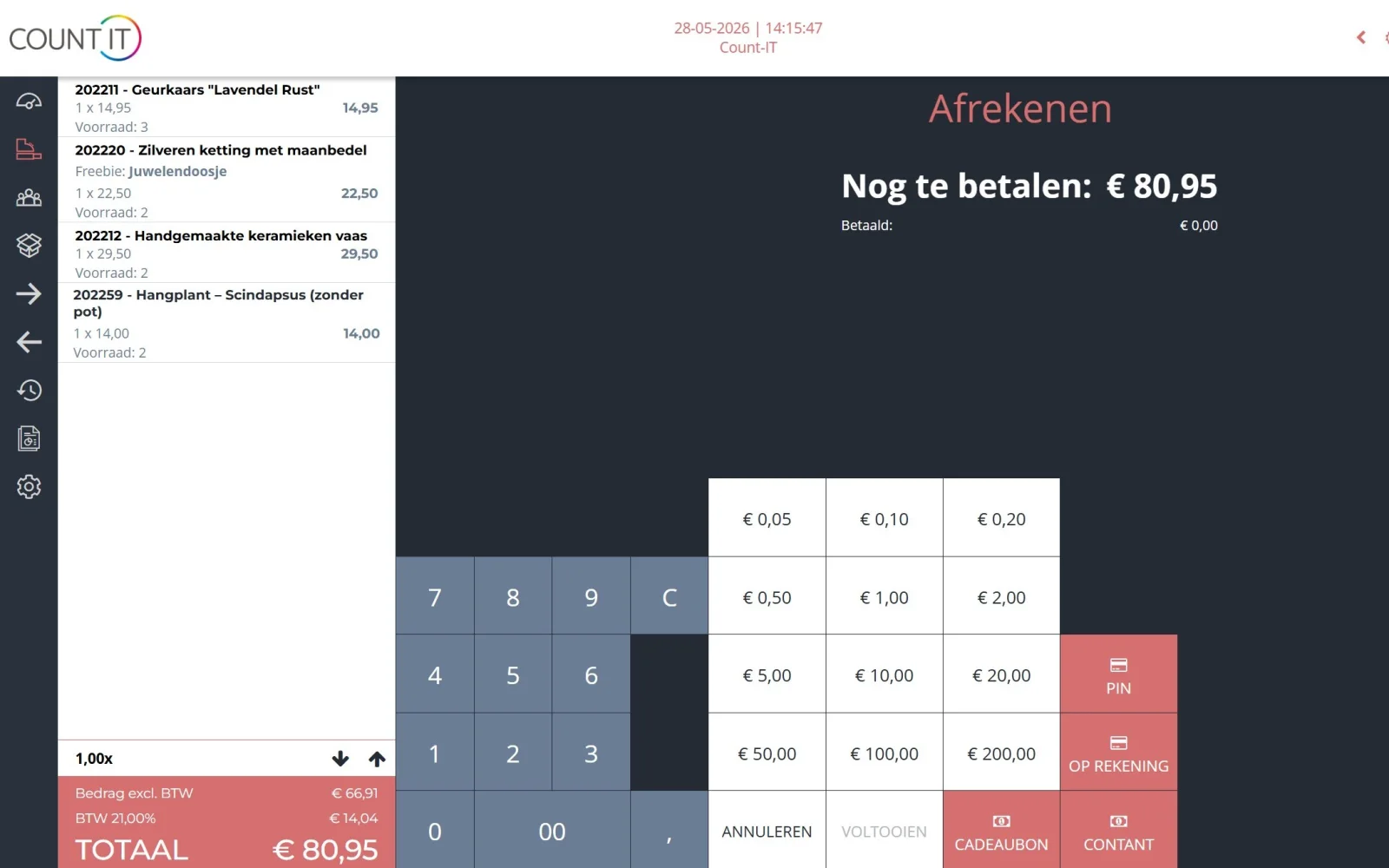
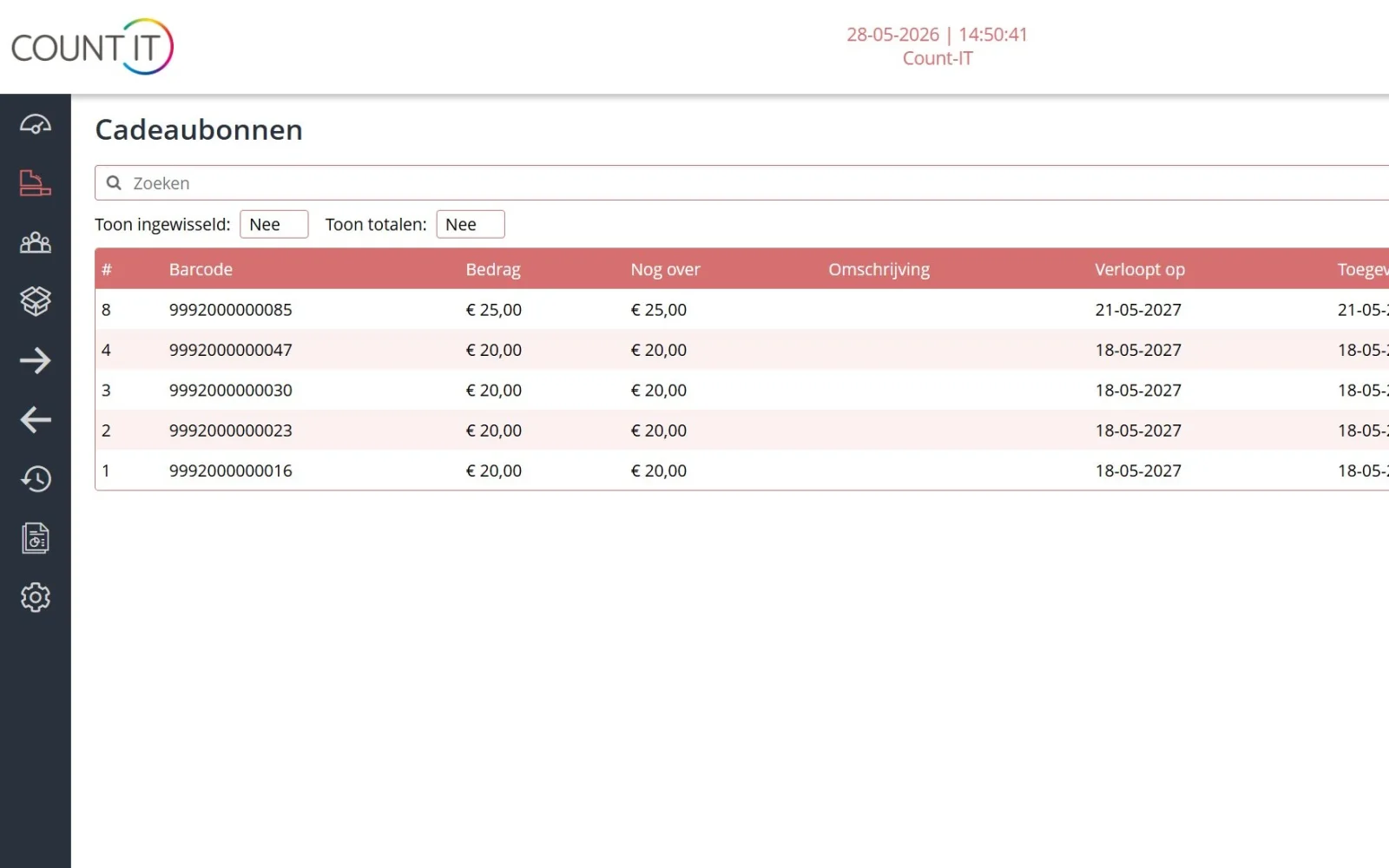
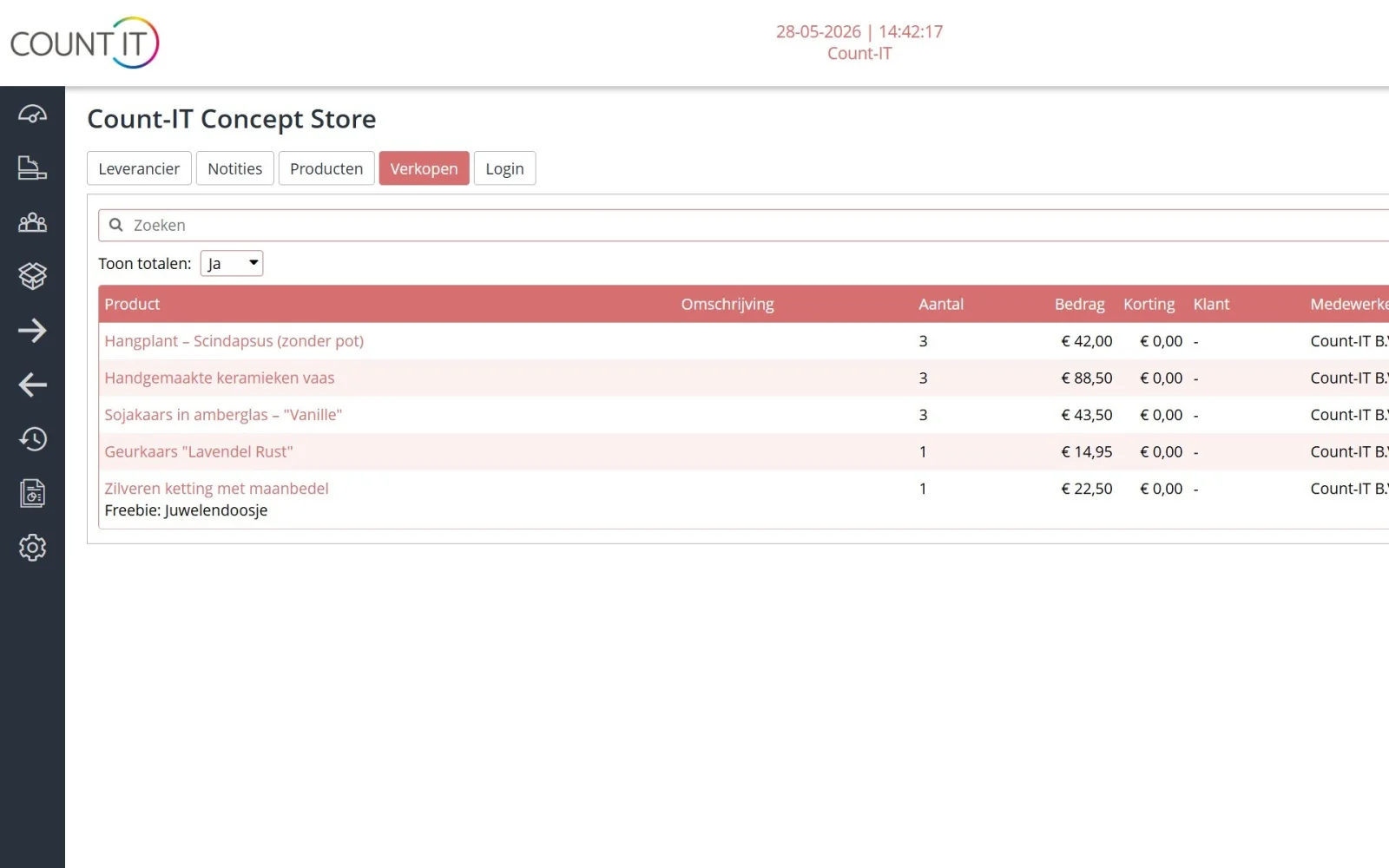
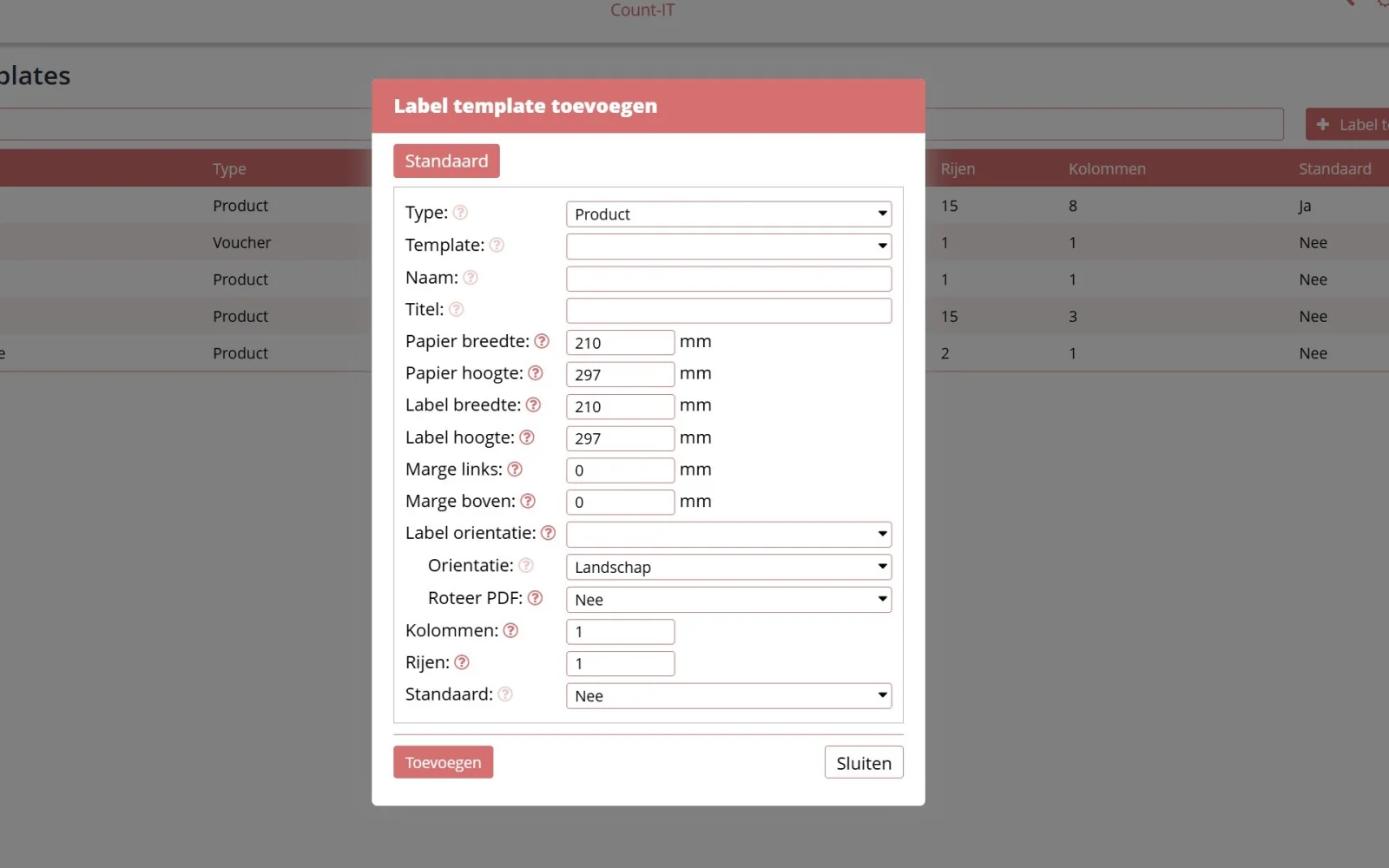
Real Count-IT screens with sample data. Click a screen to enlarge it.
How settling per entrepreneur works in Count-IT
From the first sale to the bank transfer at the end of the month: this is how a commission settlement runs in Count-IT.
Set up entrepreneurs and products
You record each entrepreneur or brand as a supplier and link the products to that supplier. On the supplier record you set the percentage that goes to the entrepreneur; the rest is your commission.
Sell through one till
Your team rings everything up on one receipt. Count-IT knows which entrepreneur each receipt line belongs to, based on the product's main supplier.
Commission per entrepreneur
Under Suppliers > Commission you choose a period, for example a month. You see turnover, percentage, commission and payout per entrepreneur, and can open the underlying receipt lines.
Monthly commission invoices
With one button Count-IT creates a commission invoice for each entrepreneur, with the invoice date you choose. Only one commission invoice is created per entrepreneur per month, so nothing is duplicated.
Pay out by IBAN
Download the payment file: an Excel list with each entrepreneur's IBAN, BIC, name, address, the amount to pay and the period as a description. Use it to make the transfers through your bank.
Settings you control
- Calculate commission on turnover including VAT (default) or excluding VAT.
- Include sales invoices in the commission as well as till sales.
- Split the overview and export by department and by VAT rate.
- Exclude turnover from departments an entrepreneur is not linked to.
- Your own description for the commission line on the invoice, and skip lines without commission.
- Optionally, a separate invoice per period for the turnover of your own range.
Worked example: commission and payout for three entrepreneurs
An example with fictitious names and amounts. Three entrepreneurs sell in your concept store; commission is calculated on turnover including VAT, which is the default setting.
| Entrepreneur (fictitious) | Turnover in the month (incl. VAT) | Entrepreneur's share | Your commission | Payout |
|---|---|---|---|---|
| Studio Noor | €4,000 | 75% | €1,000 | €3,000 |
| Botanica | €2,500 | 80% | €500 | €2,000 |
| Atelier Vos | €1,200 | 70% | €360 | €840 |
| Total | €7,700 | – | €1,860 | €5,840 |
You set the percentage freely for each entrepreneur on the supplier record. Count-IT records it as the entrepreneur's share: at 75%, €3,000 of €4,000 goes to Studio Noor and €1,000 is your commission. If you choose to calculate excluding VAT, commission is calculated and invoiced on turnover excluding VAT, and the payout is turnover including VAT minus commission including VAT. The VAT on the commission invoice follows the VAT code of the commission product you set up.
Het systeem is intuïtief en de mogelijkheden zijn enorm!
Rent, commission or consignment: the differences
A concept store can earn money from the entrepreneurs in the shop in several ways. These are the three common models, and what Count-IT does for you in each.
| Aspect | Rent | Commission | Consignment |
|---|---|---|---|
| How it works | Fixed monthly price for a shelf, rack or floor area | You keep a percentage of every sale | Goods remain the entrepreneur's until they are sold |
| Risk if sales are low | With the entrepreneur | Shared | Mainly with the entrepreneur; unsold goods go back |
| Your income | Fixed and predictable | Moves with turnover | Your cut of items sold |
| Settlement | Rent invoice per period | Settlement per entrepreneur per period | Settlement of what has sold |
| In Count-IT | No separate rent module: you agree rent outside the till and bill it as a regular or recurring invoice | Fully supported: percentage per entrepreneur, commission invoices and payout file | Yes, if you agree the cut as a percentage of the selling price; everything then runs through the commission settlement |
A combination is possible too, for example a lower fixed rent plus a lower commission percentage. Count-IT settles the commission; you invoice the rent separately. Always put the arrangements in writing, including what happens to unsold items and returns.
VAT in a shop-in-shop: what to look out for
In a shop-in-shop, the key VAT question is: who is the seller? If you sell the products in your own name, you are generally treated as the supplier for VAT purposes and you account for the VAT on the sale. If you clearly sell in the name and on behalf of the entrepreneur, the entrepreneur makes the supply and you invoice a service: your commission, on which you generally charge VAT. Schemes such as the Dutch small business scheme (KOR) can also differ per entrepreneur.
This is a general explanation, not tax advice. How it works out for you depends on your contracts and how you sell. Ask your accountant to review it before you start.
Count-IT helps you book turnover cleanly per period, whatever arrangement you make:
- Commission overview and export split by VAT rate and by department.
- Commission invoices with the VAT code of the commission product you set up.
- Optionally, a separate invoice per period for the turnover of your own range.
- Turnover reports as PDF or Excel, and a daily automatic email export of till transactions for your accountant.
What each entrepreneur sees
Entrepreneurs in your shop want to know how their products are doing. With the supplier portal, you no longer need to email them lists.
- Their own login for the Count-IT supplier portal.
- They add their own products to the product groups you open up for them.
- Insight into stock and sales of their own products.
- You decide through permission groups what an entrepreneur can and cannot see or do.
- At the end of the period the entrepreneur receives your commission invoice and the payout to their IBAN.
Multiple tills and devices, one cloud system
Count-IT runs in the browser and as an app, on a PC, tablet or phone. Every till in your concept store works with the same data in the cloud: one stock, one customer database and one commission overview. If your internet connection drops, you can still do basic checkout at the till; receipts are synchronised later.
Connect a card terminal, receipt printer, cash drawer, scanner and label printer. If an entrepreneur's products have no barcode yet, you print your own labels. Do entrepreneurs sometimes work the till themselves? Each user logs in with their own PIN, and security codes let you decide who may process refunds, give discounts or open the cash drawer. The number of users is unlimited.
Starting a concept store: checklist for your till and admin
Opening a concept store or setting up a shop-in-shop format? Sort out these points before you open, and your first settlement will be right straight away.
- Choose the model per entrepreneur: rent, commission, consignment or a combination, and put it in writing.
- Discuss VAT with your accountant: who is the seller, and which VAT rate applies to the commission?
- Collect entrepreneur details: company name, address, company registration and VAT numbers, and IBAN for the payout.
- Get product data ready: name, price, VAT rate and barcode or item number per product, ideally in Excel or CSV.
- Arrange labels: products without a barcode get their own label, so every sale lands with the right entrepreneur.
- Agree the settlement rhythm: for example monthly, with a fixed date for the commission invoice and payout.
- Choose your hardware: number of tills, card terminal, receipt printer and scanner.
- Set permissions: who may give discounts or process refunds, and which entrepreneurs get a supplier portal login.
- Selling online too? Connect your webshop so the till and webshop use the same stock.
- Test in advance: during the trial, set up a few entrepreneurs and products and run a test settlement.
Separate till + Excel settlement vs Count-IT
| Task | Separate till + Excel | Count-IT |
|---|---|---|
| Turnover per entrepreneur | Extracted from receipts by hand | Automatic per receipt line |
| Calculating commission | Formulas per entrepreneur | Percentage per entrepreneur |
| Commission invoices | Drawn up one by one | One button, no duplicates |
| Paying out | Retyping IBANs | Payment file with IBANs |
| VAT and departments | Split manually | Split by VAT rate and department |
| Insight for entrepreneurs | Emailing lists | Own portal login |
| Stock per entrepreneur | Separate lists | One stock across till and webshop |
Currently using a standard shop till? Also see the POS system for retail and all integrations with webshops, accounting and card terminals.
FAQs about POS systems for concept stores
What is a shop-in-shop POS system?
A shop-in-shop POS system is a till system that lets you sell products from several entrepreneurs or brands through one till, while turnover, stock, commission and payouts stay separate for each entrepreneur. Count-IT assigns every sale to the right entrepreneur automatically.
How does settling commission per entrepreneur work in Count-IT?
You link products to an entrepreneur and set a percentage for each entrepreneur. Under Suppliers > Commission you see turnover, commission and payout per entrepreneur for each period. You then create the commission invoices with one button and download a payment file with IBANs.
Can I set a different commission percentage for each entrepreneur?
Yes. You set the percentage freely for each entrepreneur on the supplier record. It is the entrepreneur's share; the difference from the turnover is your commission.
Is commission calculated on turnover including or excluding VAT?
By default on turnover including VAT. You can also choose to calculate excluding VAT; the commission is then invoiced excluding VAT and the payout is turnover including VAT minus commission including VAT.
Does Count-IT support rent per shelf or per square metre?
There is no separate rent module. You agree fixed rent outside the till and bill it as a regular or recurring invoice in Count-IT. If you work with commission, or a mix of rent and commission, Count-IT settles the commission automatically.
Can I settle consignment sales with Count-IT?
Yes, if you agree a cut with the entrepreneur as a percentage of the selling price. Sales, commission invoices and payouts then run through the same commission settlement.
How do I pay out the entrepreneurs in my shop?
For each period Count-IT creates a payment file in Excel listing each entrepreneur's IBAN, BIC, name, address, the amount and a description with the period. You use it to make the transfers through your bank.
Can entrepreneurs see their own sales and stock?
Yes. Entrepreneurs get their own login for the supplier portal, where they manage their products and view the stock and sales of their own products. You decide through permission groups what they can see.
How much does a POS system for a concept store cost?
For commission settlement and the supplier portal you need the Full plan: €69 per till per month, excluding VAT, including support, updates and unlimited users. Light (€35) does not include these features. A volume discount applies to multiple tills at one location. See plans and pricing.
Can I try Count-IT first?
Yes. You can try Count-IT free and without obligation for 30 days, or book a 30-minute live online demo. Start your trial or get in touch.
More about Count-IT for concept stores
Plans and pricing
ViewKnowledge base: till and checkout
ViewKnowledge base: customers, suppliers and portal
ViewAll integrations
ViewCount-IT for other sectors
Ready to automate your settlement?
Try Count-IT free for 30 days with your own entrepreneurs and products, or let us show you the commission settlement in a 30-minute live demo.