POS software

POS software that runs on any device

Check out using buttons, search or a scanner, give discounts, process refunds and accept several payment methods. The Count-IT point of sale runs in the browser and as an app, on a POS PC, tablet or phone.

In short

Count-IT is POS software that runs in the browser and as an app, on a POS PC, tablet or phone. You check out via product buttons, search or the scanner, give discounts, process refunds and split payments, and close the day with a cash count. The POS uses the same products, customers and prices as the rest of Count-IT.

  • Product buttons and groups, search and scanning, including GS1 barcodes
  • Print, email or PDF receipts, or finish as an invoice or order
  • Basic checkout during an internet outage; receipts are synchronised later

What is POS software?

POS software is the program you use at the counter or at the table to ring up sales, take payments and issue a receipt. In Count-IT the point of sale is not a separate program: it works with the same products, customers, price lists and stock as product management, invoicing and reporting. What you sell at the POS appears straight away in your revenue and, with stock management, in your stock.

You work in the browser or in the Count-IT app, on a POS PC, tablet or phone. Every employee signs in with their own account or POS code, and with permissions and security codes you decide who may process refunds, give discounts or open the cash drawer. You set up the button layout yourself, for the whole company, per location or per device.

Count-IT is built for shops, hospitality, concept stores and businesses with a counter or showroom. Hospitality adds tables, floor plans and bill splitting; shops add weighed products, labels and gift cards. Receipt printers, scanners, cash drawers, customer displays and payment terminals are on the hardware page.
Features

What you can do at the POS

Settings let you tailor the POS to the way you work, from button size to what happens after checkout.

Product buttons and groups

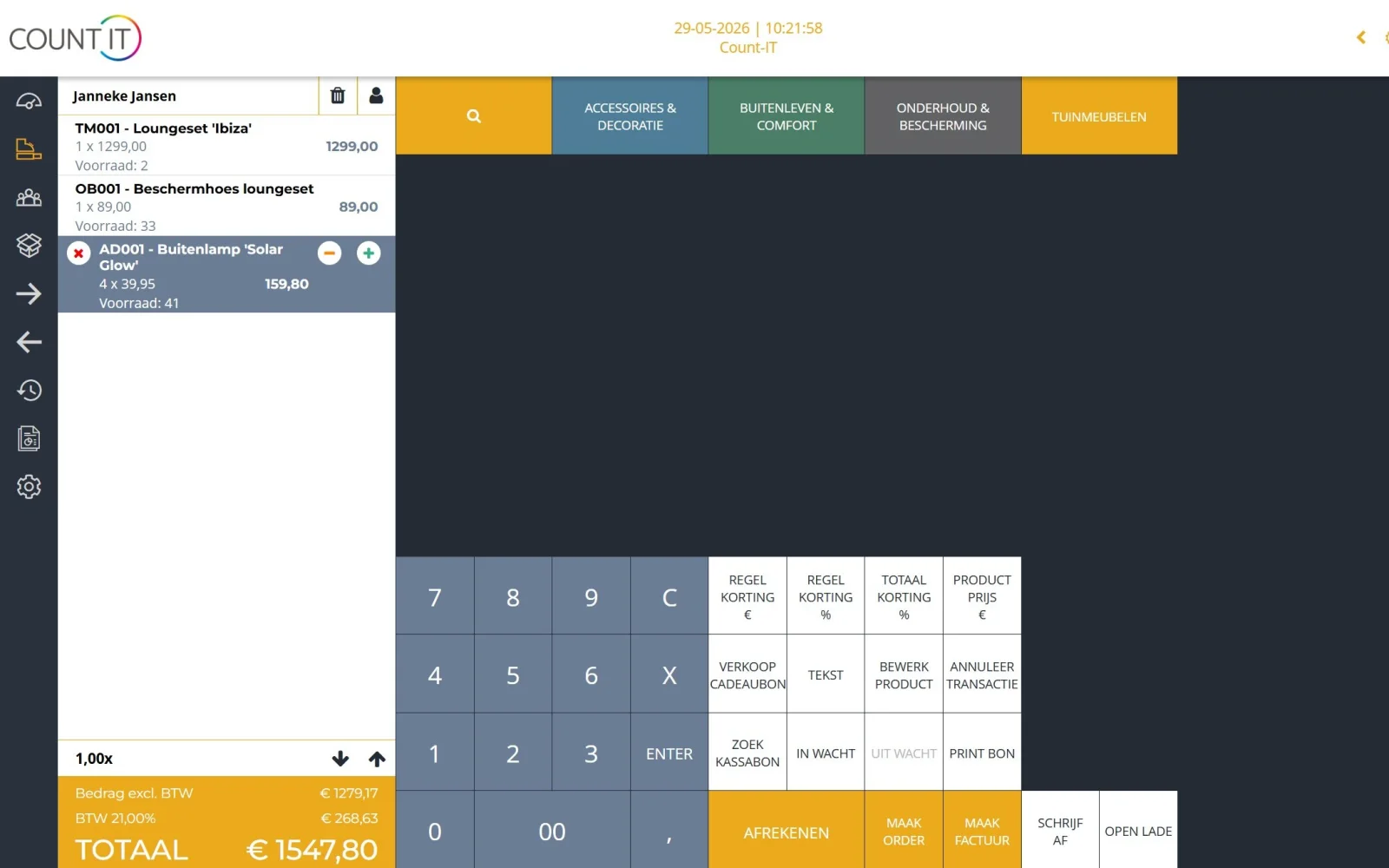
Put product groups and best-selling products on the POS as buttons. Layouts organise the product buttons and action buttons, for the whole company, per location or for a single device.

Search and scanning

Search for a product by name or code, or scan the barcode. The POS can extract the product code from a composite GS1 scan and, if you wish, stops at an unknown barcode so you can check it.

Customers at the POS

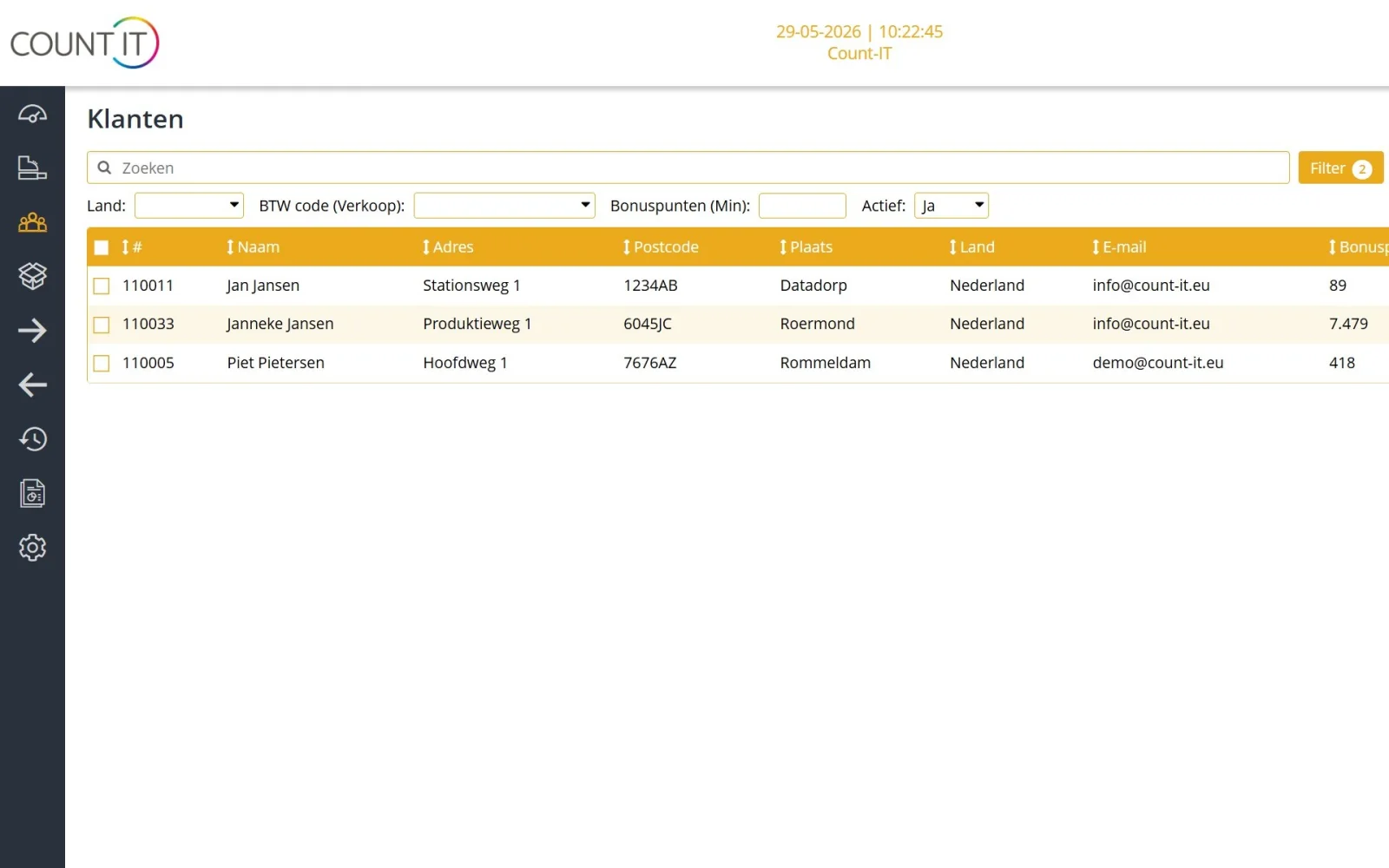
Link a customer to the receipt for agreed prices, loyalty points or an invoice. With the right permissions you add new customers directly from the POS, and prices are recalculated when you switch customer.

Discounts, refunds and price changes

Give a discount on a line or on the whole receipt, as a percentage or an amount, including fixed discount buttons. Process refunds from the original receipt or with the product return function.

Payment methods and split payments

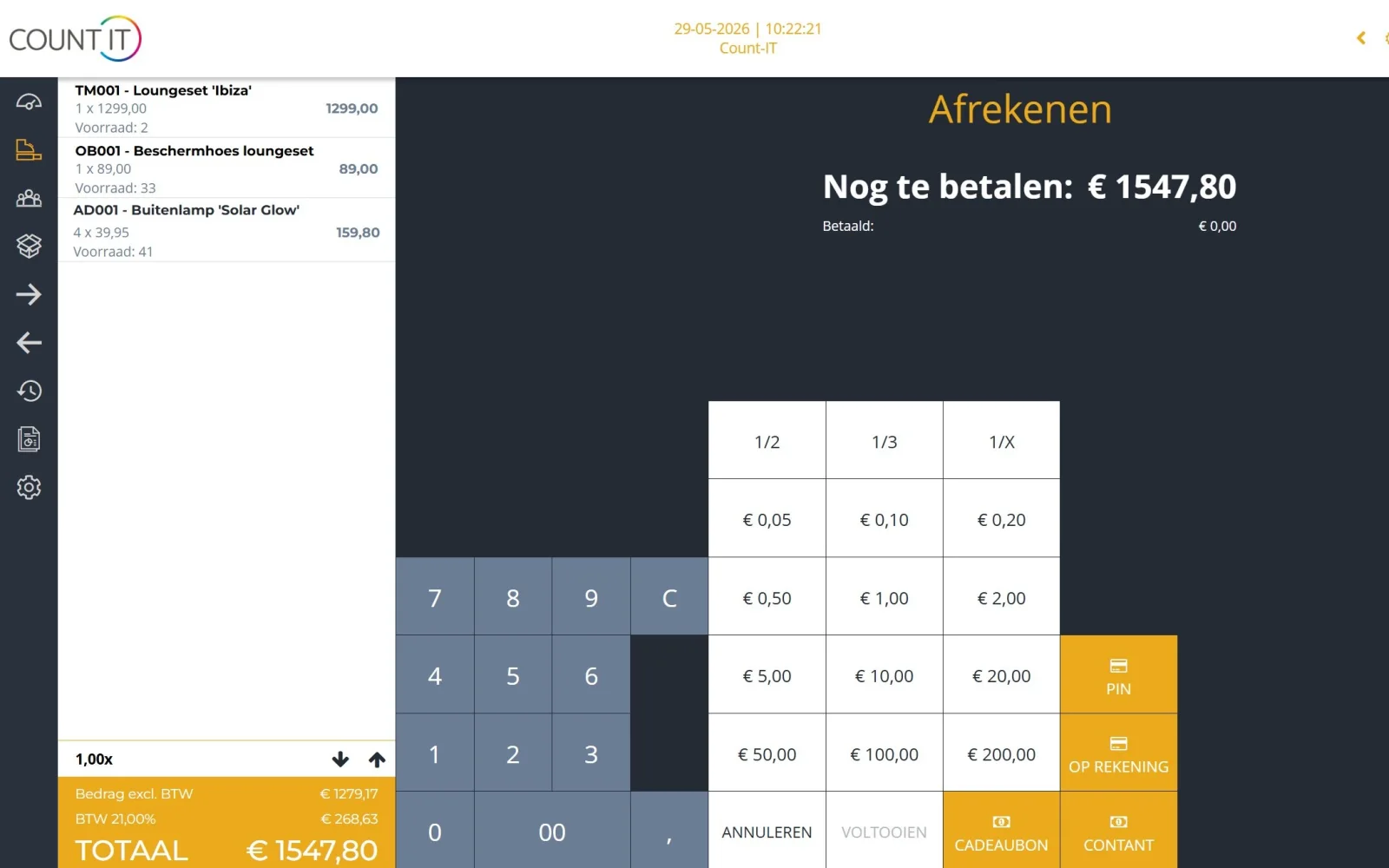
Accept cash, card via a linked payment terminal, gift cards, loyalty points or other payment methods. With split payments a customer pays one receipt with several methods.

Receipt, email, invoice or order

Print the receipt, email it or offer a PDF. You can also put a transaction on account or finish it as an invoice or order, and park a receipt or put it under a name to settle later.

Cash counts and security

Count the float and closing balance per POS, user or department, and record cash expenses. Security codes protect cancellations, refunds, negative payments, manual discounts and opening the cash drawer.

Customer display and employees

The customer display shows products, prices and the total, and your own slides in between. Employees switch accounts quickly with a POS code, and if you wish the POS locks after every sale.

How it works

A sale in five steps

  1. Sign in

    The employee signs in with their own account or POS code. If an opening count is set up, they count the float first.

  2. Add products

    Via a product button, the search function or the scanner. Weighed products are weighed with the weigh button, and an open-price product asks for the price.

  3. Customer and discount

    Choose a customer when needed for agreed prices, loyalty points or an invoice, and give a discount with the right permissions.

  4. Pay

    Choose one or more payment methods. A card payment goes to the linked terminal; the result comes back on the receipt.

  5. Finish

    The POS prints the receipt, lets you choose between print, email or PDF, or creates an invoice or order, depending on the action set for completion.

To be fair

What the POS does not do (yet)

So you know in advance whether it fits.

  • Count-IT is an online system. During an internet outage you can do basic checkout, but not every function is available; receipts are synchronised once the connection is back.
  • Printing to a local receipt or label printer goes through the Count-IT app or the print software provided by Count-IT; from a plain browser without that software you cannot print to such a printer.
  • If the outcome of a card payment is uncertain, Count-IT never starts a new payment automatically and corrects nothing by itself: you check the status first, to avoid charging the customer twice.
  • Light is meant for simple checkout. Selling on account or finishing a receipt as an invoice or order, sales orders and stock management are part of the Full plan.
Frequently asked questions

Questions about the POS software

Which devices does the Count-IT POS software run on?

Count-IT runs in the browser and as an app, on a POS PC, tablet or phone. For a complete checkout you connect a receipt printer, scanner, cash drawer and payment terminal. We supply that hardware pre-tested, or check whether your existing equipment is suitable.

Does the POS work without internet?

During an internet outage you can still do basic checkout; receipts are synchronised later. Count-IT is an online system, though: after a major change or a device swap a full reload may be needed.

Can a customer pay with several payment methods?

Yes. With split payments you settle one receipt with several payment methods, for example partly in cash and partly by card. The “same amount” button fills in the remaining amount.

How do I process a refund at the POS?

Ideally open the original receipt, choose the line, the quantity and the refund method. You can also use the product return function. With a security code for returns or refunds you decide who may do this. If a final invoice already exists, you create a credit note.

Can I create an invoice or order from the POS?

Yes. You can put a transaction on account or finish it as an invoice or order, for example for a business customer; this is part of the Full plan. The invoice can be emailed straight away, and for an order the POS can ask for the delivery time and notes. Read more about invoices under invoicing.

How do employees switch on the same POS?

With account switching, account buttons on the POS show the authorised employees; they sign in with a POS code. “Helped by” records which employee served the customer, and Lock after checkout makes everyone sign in again after each sale.

How does the cash count at the end of the day work?

You count the money in the drawer, by coins and notes or as a total amount only. A cash count can be done in total, per user, per POS or per department, with an opening and closing count. Cash differences appear in the cash count overview and the cash flow report.

Can I customise the receipt?

Yes. In the receipt layout you change the header, footer and logo, and in the POS settings you choose which details appear on the receipt, such as item number, barcode, customer details and payment details. Number of receipt copies prints extra copies.

Try the POS yourself

In a demo we show how checkout, refunds and cash counts work, using your products as an example.